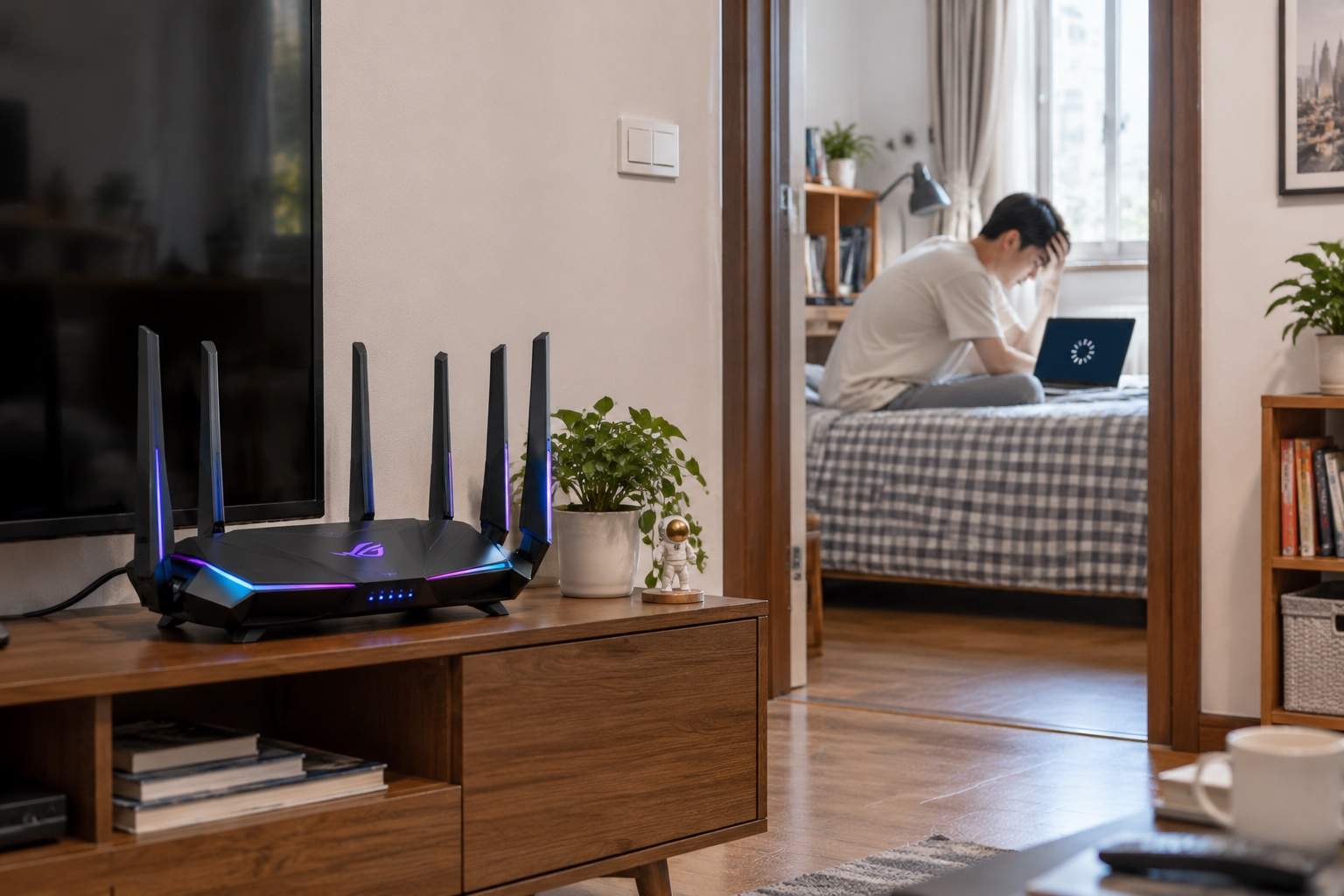
You’re nestled in your favorite armchair, eyes glued to the screen, ready for that crisp 4K movie or a crucial video call. Then it hits: the dreaded buffering wheel. Spin, spin, spin. Or maybe your smart speaker in the kitchen keeps dropping off the network, leaving you muttering, "My internet provider is ripping me off! Time for a faster plan!"
E.g. :The Lithium-Ion Heist: Why Your Circular Economy Contribution is a Hidden Carbon Debt
- 1、The Great ISP Blame Game: Why It's Often a Red Herring
- 2、The Unseen Culprit: Router Placement and Signal Strength
- 3、Decoding Interference: Your Home's Hidden Wi-Fi Enemies
- 4、Smart Device Overload: Managing Your Network Traffic
- 5、Beyond the Basics: Quick Wins for Wi-Fi Optimization
Let's be honest, we've all been there. That pervasive frustration of "slow internet" or mysterious "Wi-Fi dead zones" often sends us down a rabbit hole of expensive upgrades – faster ISP plans, fancier routers, repeaters galore. But what if I told you that in 70% of these cases, the real culprit isn't your internet provider and you don't need to spend a single extra dime? As a hardware engineer who's seen the guts of countless networks, I'm here to tell you a little secret: your "slow internet" is often a "slow Wi-Fi" problem, and it's almost entirely within your control. Think of me as your efficiency mentor, guiding you to unlock peak performance from the tech you already own, bringing technology back to serving you.
The Great ISP Blame Game: Why It's Often a Red Herring
Many folks get confused between their internet service provider (ISP) speed and their home Wi-Fi performance. Imagine your ISP as a superhighway delivering data to your house. You might be paying for a 500 Mbps superhighway, but if the exit ramp to your garage (your Wi-Fi) is clogged or poorly designed, that superhighway speed means squat once you're inside. A study by OpenSignal found that average real-world Wi-Fi speeds in homes are often dramatically lower than the advertised broadband speeds, sometimes by as much as 80%. That's a huge gap! Your ISP might be doing its job perfectly, but your home network is acting like a tiny, congested dirt road.
Your Actual Bandwidth vs. Perceived Speed
Here’s the kicker: for most daily tasks like streaming video, browsing, or even video calls, raw mega-bits-per-second (Mbps) isn't the only, or even the most important, factor. Latency – the delay before data transfer begins – often plays a bigger role in how "snappy" your internet feels. A network with low latency and moderate speed can feel faster than a high-speed, high-latency connection. You can have a 100 Mbps plan and feel lightning-fast if your Wi-Fi is optimized, while a 1 Gbps plan might feel sluggish if your network has high latency due to poor setup.

The Unseen Culprit: Router Placement and Signal Strength
Your wireless router isn't just a blinky box; it's a radio tower for your home network. Just like a radio station needs clear line of sight, your router needs the same. Placing it behind a stack of books, inside a cabinet, or tucked away in a corner is like trying to yell across a crowded room with a pillow over your head. Wi-Fi signals degrade rapidly with distance and are blocked by physical obstacles. Thick walls, metal objects (refrigerators, filing cabinets), and even water (large fish tanks, plumbing) are signal killers.
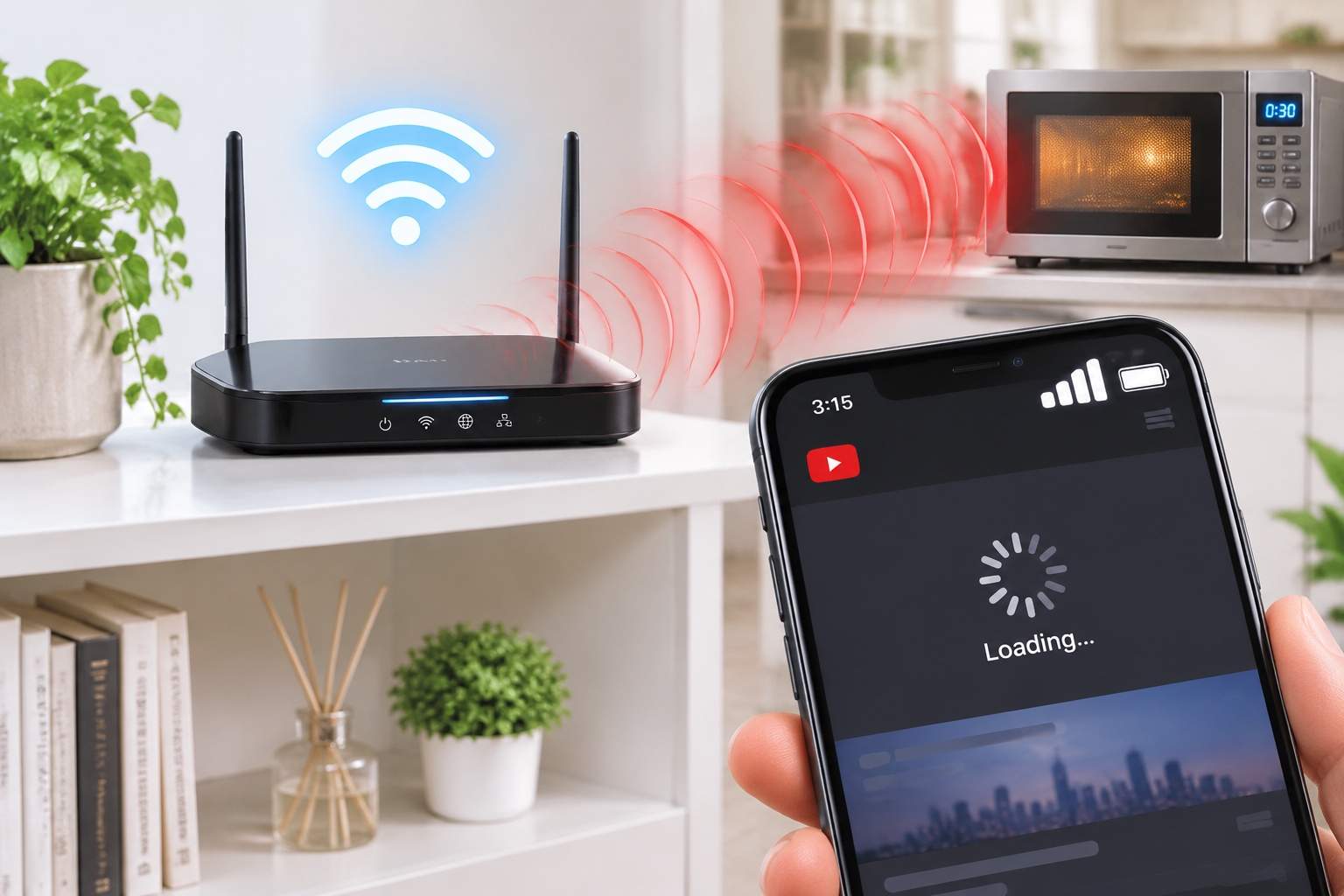
We often see homes where the router is in the basement or an office at one end of the house, resulting in Wi-Fi dead zones in the kitchen or bedrooms. A simple relocation can work wonders. Elevate your router, put it in a central location, and keep it away from large metal appliances. This single, free step can boost your signal strength by 30-50% in previously weak areas. Imagine your smart speaker finally staying connected in the kitchen because its signal isn't battling three concrete walls and a microwave oven.
Decoding Interference: Your Home's Hidden Wi-Fi Enemies
Wi-Fi operates on specific radio frequencies, mainly 2.4GHz and 5GHz. The problem? Many other devices use these frequencies too. Cordless phones, Bluetooth speakers, baby monitors, and especially microwave ovens can wreak havoc on your 2.4GHz Wi-Fi. Even your neighbor's Wi-Fi network can interfere if you're both using the same "channel" – like two radio stations broadcasting on the exact same frequency.
A quick, free fix involves logging into your router's settings (usually via a web browser) and changing the Wi-Fi channel. Apps are available to scan your environment and recommend the least congested channels. For example, if you notice your internet slowing down every evening when your neighbors get home, switching from default Channel 6 to Channel 1 or 11 could drastically improve performance.
The 2.4GHz vs. 5GHz Dilemma: A Simple Choice
Modern routers often broadcast on both 2.4GHz and 5GHz bands.
- 2.4GHz offers longer range and penetrates walls better, but it's slower and more susceptible to interference. Ideal for devices further away or those that don't demand high bandwidth (smart home devices, general browsing).
- 5GHz offers much faster speeds and less interference, but its range is shorter and it struggles more with obstacles. Perfect for bandwidth-hungry devices closer to the router (4K streaming TVs, gaming consoles, video call laptops). You can often rename these networks in your router settings (e.g., "MyHome_2.4G" and "MyHome_5G") and manually connect devices to the appropriate band for optimal performance.
Smart Device Overload: Managing Your Network Traffic
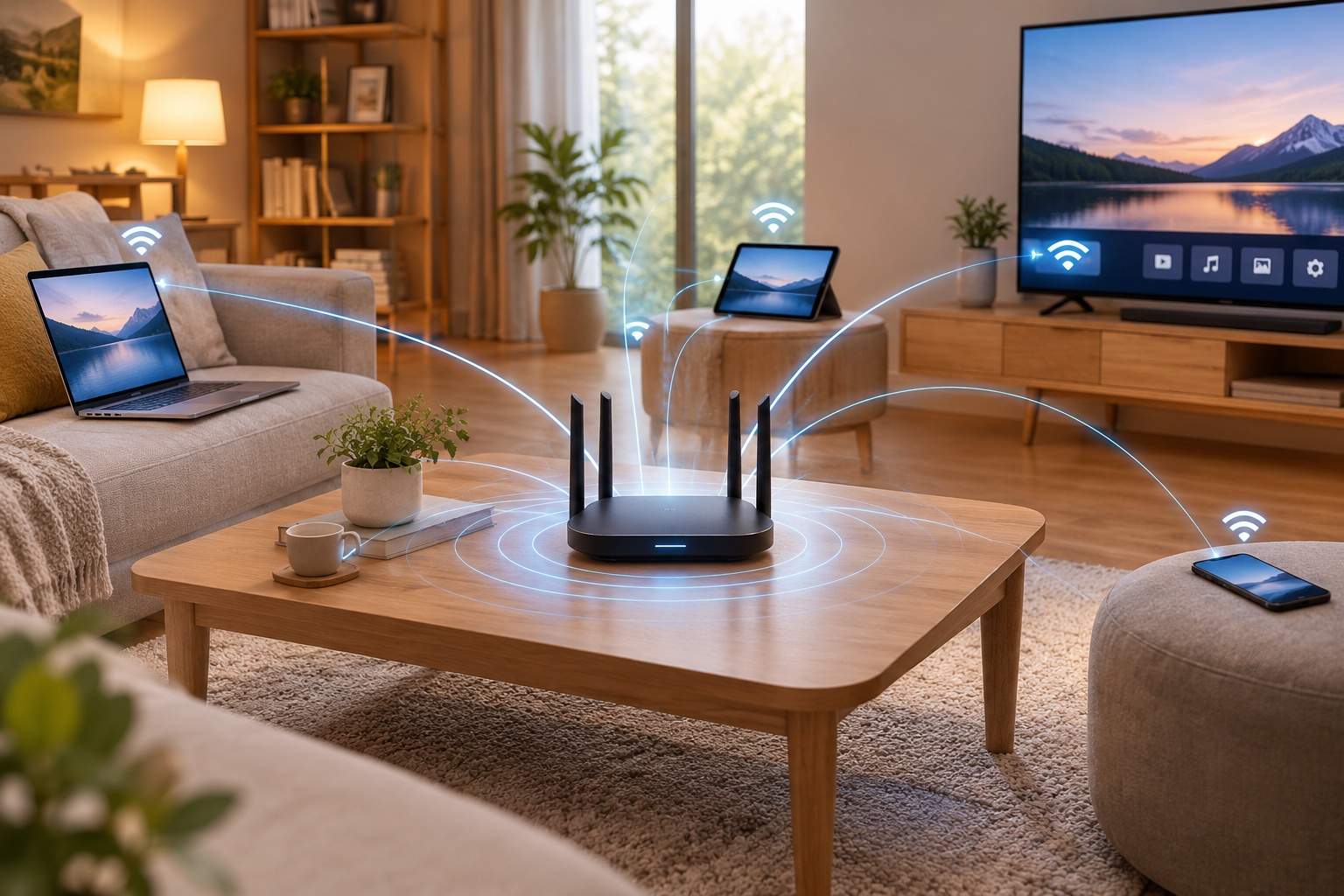
Our homes are increasingly filled with smart devices – light bulbs, thermostats, cameras, streaming sticks, gaming consoles, laptops, tablets, phones… the list goes on. Each of these devices is constantly talking to your router, consuming bandwidth. If you have two people streaming 4K video, another on a high-definition video call, and a large game downloading in the background, your router can get overwhelmed, even with a fast ISP plan.
This is where Quality of Service (QoS) settings come in. In simple terms, QoS allows your router to prioritize certain types of network traffic. Think of it as a traffic cop for your data. You can tell your router, "Hey, video calls and streaming movies are super important, so give them priority over background app updates or large game downloads." Most modern routers have a basic QoS feature you can enable and configure, ensuring your critical tasks always get the bandwidth they need.
Beyond the Basics: Quick Wins for Wi-Fi Optimization
Before you even think about buying new hardware, there are two universally effective, free fixes:
- Firmware Updates: Your router, like your phone or computer, runs on software called firmware. Manufacturers regularly release updates to improve performance, fix bugs, and enhance security. Outdated firmware can lead to slow speeds, dropped connections, and security vulnerabilities. Check your router manufacturer's website for the latest updates and follow their simple instructions.
- The Classic Reboot: It sounds too simple, but restarting your router periodically can clear out temporary glitches and refresh its memory, often resolving sluggish performance. A simple unplug-wait-30-seconds-plug-in routine can work wonders.
By understanding these fundamentals of your home network – router placement, interference, and traffic management – you gain control. You become the efficiency mentor of your own digital domain, ensuring your technology serves you efficiently, rather than being a source of constant frustration. Stop blaming the ISP, start optimizing your Wi-Fi, and enjoy a truly faster, more reliable internet experience, all for free.